
Commercial disclosure: We may earn a commission from purchases made through certain links on this page. Check the seller’s price and terms before ordering.
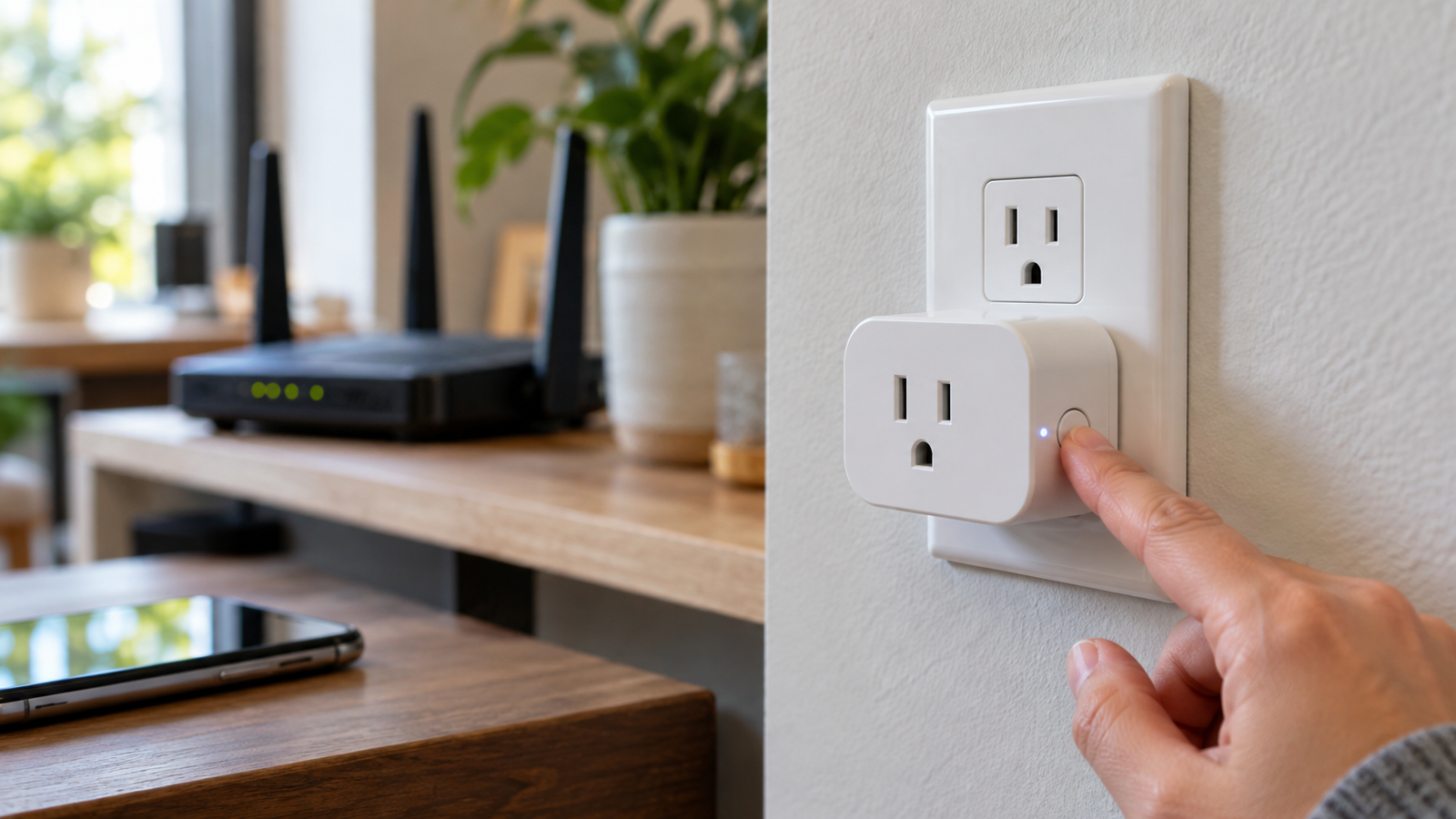
If the plug still turns on and off from its physical button, the first task is to determine whether the failure is Wi-Fi, the Meross app, or only Apple Home/Alexa/Google. Check the router and app first. A full reset breaks the existing setup and may require re-adding devices, rebuilding rules and restoring ecosystem associations. A replacement purchase is usually premature until those checks are complete.
Owners searching “reset Meross smart plug” often have a different underlying problem: a changed router, an unreachable accessory, or a schedule that stopped working. Resetting can help, but the right choice depends on the model and which layer is failing. This guide prioritizes recovery rather than selling a new plug.
Use the symptom to choose the least disruptive next step
| What you observe | Check before reset | When factory reset may be justified |
|---|---|---|
| The plug responds physically but looks offline in the app | Confirm router/internet, plug power, 2.4GHz Wi-Fi reach, app permissions and whether the network name/password changed. | Re-pair if the saved Wi-Fi settings cannot be restored or vendor troubleshooting has failed. |
| Meross app works but Apple Home shows “No Response” | Check Apple Home hub/network and ecosystem-only setup; do not erase a working Meross pairing without a reason. | Only after model-specific ecosystem troubleshooting; factory reset may disrupt other platforms. |
| Schedules fail but direct control works | Check Meross app time zone, schedule status and device firmware. | Manufacturer documents reconfiguration as a later option if schedules still fail. |
| No indicator or physical control, on a known working safe receptacle | Check power and breaker/GFCI from outside the unit; stop if hot, cracked or smells burnt. | Reset will not repair physical damage or a dead relay. |
How to reset: use the exact model instructions
Meross’s general factory-reset FAQ says to hold a smart plug’s power button for 5 seconds, and advises following the actual unit’s manual. For the documented MSS110, MSS210 and MSS310 series, the LED/button guide says a successful reset is indicated by amber/green alternating flashes. Meross also advises that if this LED pattern is missing, hold the power button for five seconds and allow about twenty seconds for transition (LED troubleshooting). Do not claim identical lights or exact timing for an undocumented model.
- Record your current setup first. Save names, automations, schedules, room assignments and any setup QR/code associated with the plug. Note connected appliances and turn off sensitive loads before troubleshooting.
- Confirm the model. Check the label, packaging or Meross device information; use that manual if its reset behavior differs.
- Try non-destructive fixes. Check 2.4GHz network, power/router and app connectivity. Restart the router and, if suitable, safely unplug/replug the plug without opening it.
- Reset only when warranted. On models covered by the Meross FAQ, hold the physical power button for about five seconds until the model-specific pairing signal appears.
- Re-add in the appropriate app. Use the current Meross/Apple/Matter instructions for your exact model, reconnect routines and test one safe load before restoring schedules.
Changed your router? You might avoid the reset entirely
Meross’s new-router guidance recommends keeping the same Wi-Fi name, password and encryption method if possible. When those change, it instructs users to factory reset and configure devices again. If the plug is offline after an upgrade, compare those settings first; a device can be functional yet still be attempting an old Wi-Fi network. The Meross setup troubleshooting page also describes 2.4GHz Wi-Fi, app permissions, wrong passwords, router filtering and placement as causes of pairing failure. Make any router-security adjustments temporarily and restore protections after troubleshooting.
Matter and HomeKit: removing a device is not always the same action
This is where reset instructions become confusing. The general Meross FAQ describes using “remove device” in the Meross app as a reset path. The more specific Matter FAQ says removing a device from one ecosystem does not by itself factory-reset it, while removing a Matter device from the Meross app can trigger a factory reset that affects other ecosystems. Those statements address different apps/actions. Before deleting, confirm whether you are removing from Apple Home/Google/Alexa or from Meross itself; if a Matter device is shared, document all its ecosystem pairings.
Public reports illustrate the confusion rather than prove a universal fix. In one Apple Support Community discussion, owners described Meross outdoor plugs responding in the Meross app yet appearing unresponsive in HomeKit after repeated setup attempts. This is anecdotal, model-dependent evidence, not proof that the plug is defective or that a specific workaround will succeed.
Will schedules and automations survive?
Do not depend on settings surviving a factory reset. Meross’s schedule troubleshooting FAQ actually advises restoring schedules after a factory reset in one failure scenario. Third-party routines may be stored in a platform or linked to a prior accessory identity, so verify each automation afterward rather than assuming it transfers. For devices that control heaters, pumps or other consequential loads, never resume unattended scheduling before confirming the appliance and control remain appropriate.
Repair, ask support or replace?
- Keep and reconfigure when the button works, hardware is intact, and the symptom began with a router/app/account change.
- Ask Meross support when the LED pattern differs from the documented model, firmware update stalls, or multiple Matter ecosystems fail despite confirmed network requirements.
- Stop using and consider replacement when the housing, prongs or outlet are damaged; there is abnormal heat/smell; or the device fails basic safe electrical checks. Do not open a mains-powered smart plug.
- Change products instead when the real problem is missing platform support, poor Wi-Fi at the use point, a mismatched electrical rating or a need for energy measurement; repeating resets cannot add unsupported hardware features.
If your existing plug is truly unsuitable or has failed, compare the electrical rating, required ecosystem and energy-monitoring features of replacement models. Those are separate buying questions from a failed Wi-Fi pairing.
Bottom line
The common documented procedure is a five-second button hold, with amber/green pairing indication on specified models. But an owner should first distinguish network issues from a failed plug, identify the exact device and ecosystem, save routines and use the least destructive recovery method. Replacing a functioning smart plug solely because it vanished from an app is often unnecessary.
Compare replacement Meross U.S. smart plugs only if your existing model cannot be recovered. Check the exact U.S. model, manufacturer specifications, inventory and return terms before you order.
Reset limitations: Reset steps and indicator lights can vary by model and firmware. The documented steps cannot guarantee recovery; check the manual for your specific plug and seek Meross support before repeating a disruptive reset.
Keep researching
More decision guides from the same topic area.
Meross Smart Switch: MSS510, MSS550 and Dimmer Fit for U.S. Homes
: choose the circuit before the switchFor a U.S. Meross wall-switch upgrade, first distinguish single-pole from 3-way control, on/off…
Read guide →
Meross Outdoor Smart Plug: MSS620BHK Fit, IP44 and Load Limits
: outdoor-rated is not waterproofThe current U.S./Canada Meross store lists the MSS620BHK as a two-outlet outdoor smart plug with…
Read guide →
Meross Garage Door Opener: Compatibility Before MSG100 vs MSG200
for U.S. homeownersA Meross garage controller can add phone-based control to a compatible existing opener, but the first decision…
Read guide →